
Before and after

The same jobs, with and without it.

How each job runs today compared with Susanoo Wellness
The jobHow it usually runsWith Susanoo Wellness
The weekly roster Rebuilt in a spreadsheet every week. Built once and repeated. Every placement is checked against your rules.
A call-off Group texts and phone calls to find cover. Cover starts straight away. Open shifts are claimed from the phone.
Hours and pay Rebuilt by hand every pay period. Timesheets build themselves from clock-ins. Approved hours export for payroll.
Certificates Tracked in a binder. On file with proof. A warning before expiry, and no scheduling once lapsed.
Hiring Paperwork between “yes” and the first shift. One flow from vacancy to first shift. An accepted offer carries into the staff record.
Incidents and handover Found out by phoning the house. Reported from the phone and seen straight away. Handover is written in the app.
Who is at the house Phone calls to check. A live board of who is in, who is due and who has not clocked out.
Every feature

Pick an area.

Each area works on its own and shares one record with the rest, so nothing is typed twice. Every feature can be switched on or off for your organization.

01

Scheduling and coverage

Build the roster once and let it repeat. The system checks every placement, so the office stops catching mistakes by hand.
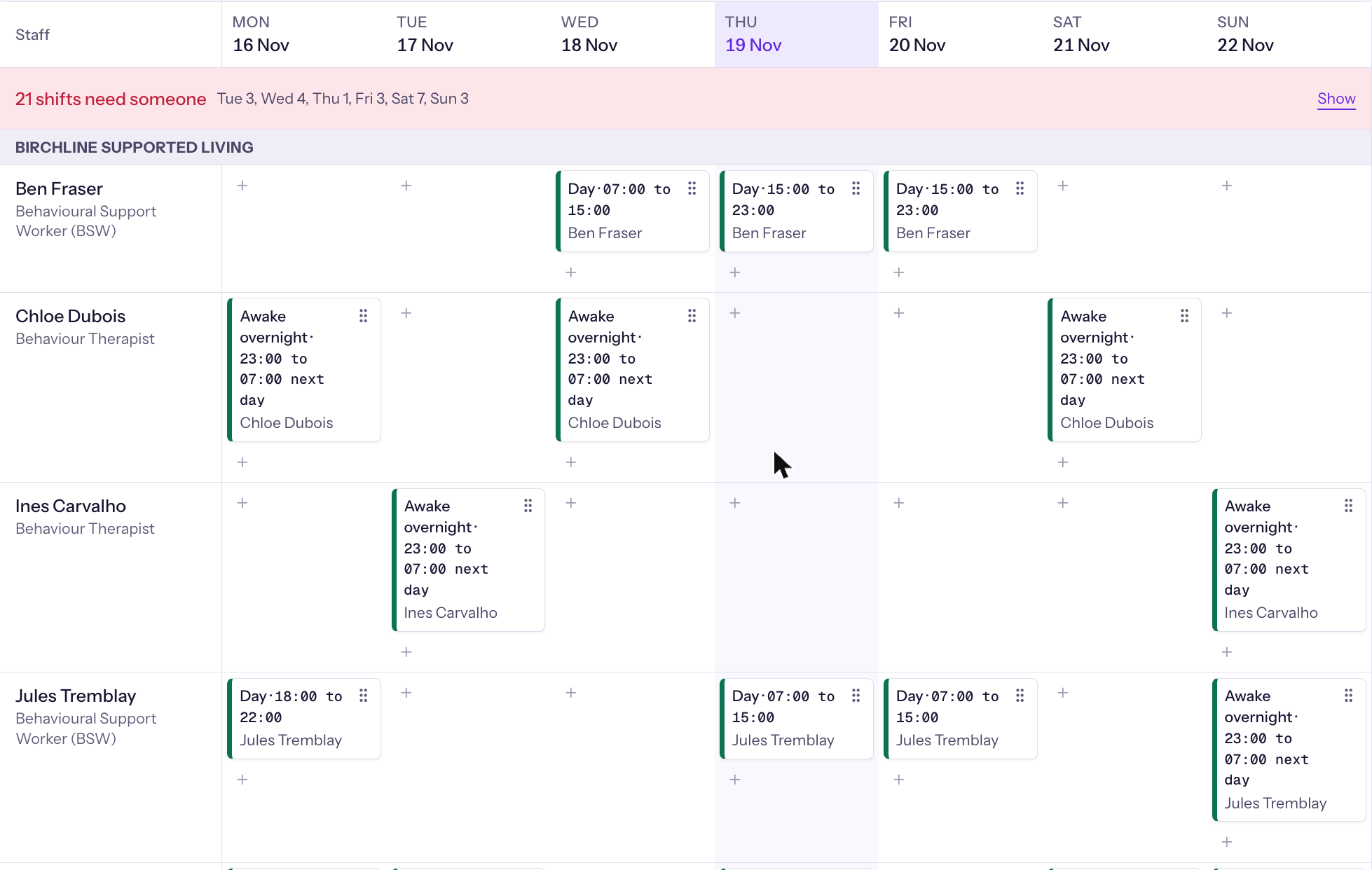
The weekly roster, with each person on a row, each day in a column, and an Unfilled row at the top.
  • Standing rotations for each house, generated forward so nobody retypes the week.
  • Every person on a row and every day in a column, with an Unfilled row at the top. Drag to move, hand over or stretch a shift.
  • Three views of the same week: by staff, by client and by house.
  • A printed one-page week for the house wall.
  • Two staff on one client, when a client needs it.
  • Every placement is checked against your rules, whether a supervisor, a phone claim, a swap or a rotation makes it. A shift that breaks a rule is refused.
  • Suggested staff for every shift, best match first.
  • Save as a draft, then publish. Staff confirm they have seen each new shift.
  • An open shift board. Staff claim shifts, swap with colleagues, set their availability and ask for time off, all from the phone.
  • A call-off starts cover at once.
  • Gaps are flagged early, and each house gets a forecast of short weeks.
  • Rest limits and too many days in a row are settings the office controls.
  • For organizations with a collective agreement, open shifts can be offered by seniority. It is off by default.
02

Clock-in and attendance

Staff clock in on their own phone and the system confirms they are at the house. Supervisors see the whole picture live.

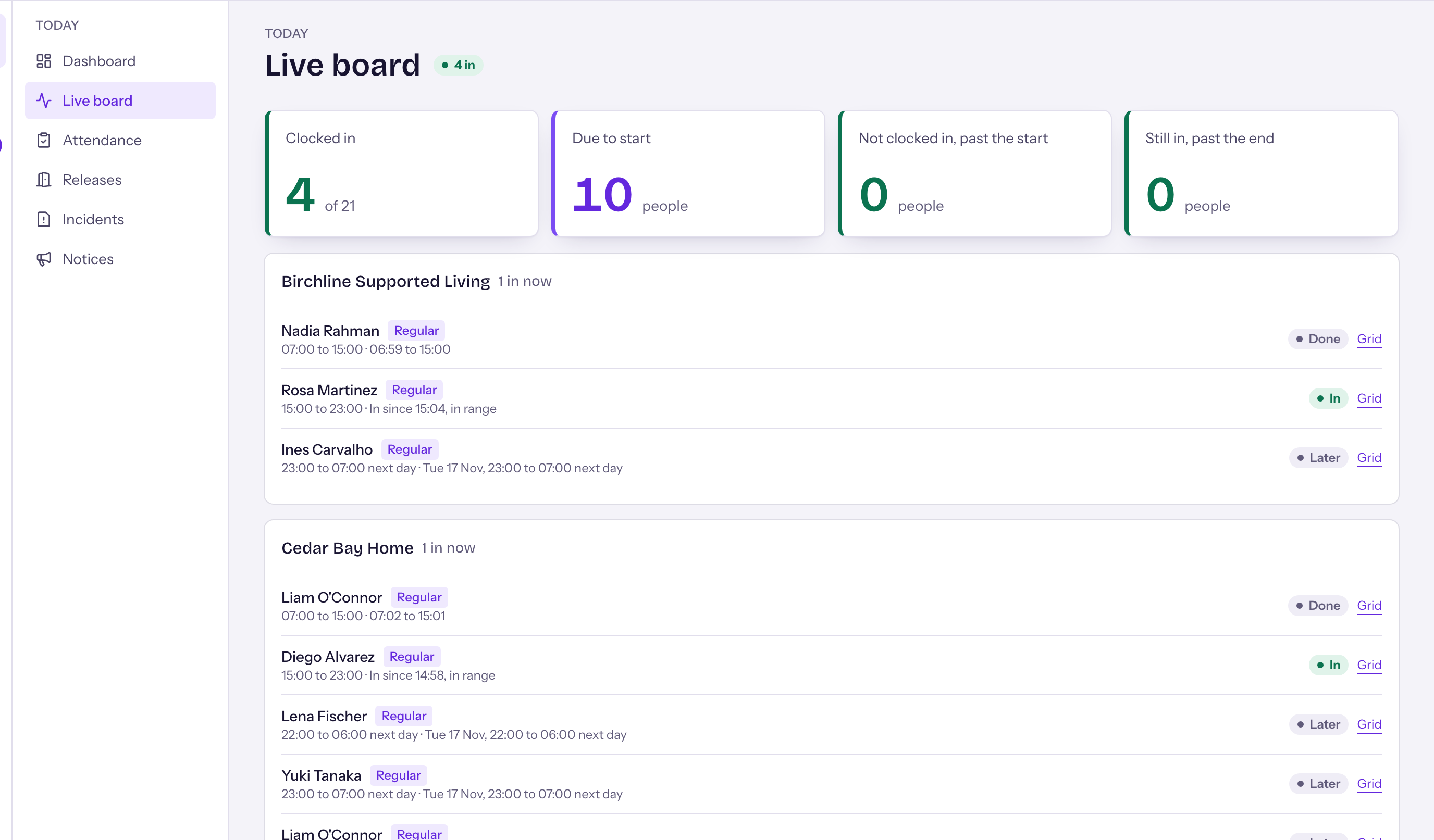
The live attendance board, listing each house with who is clocked in, due or late.
  • Clock in and out from the phone. The system checks that the person is at the house.
  • A clock-in from outside the house is refused, with a quick release when there is a genuine reason.
  • A live board shows who is in each house now, who is due, and who has not clocked out.
  • Late and no-show alerts reach the supervisor straight away.
  • A forgotten clock-out closes itself, and the worker is asked about it.
  • An attendance review queue. Supervisors can record a punch.
  • Every correction is kept beside the original, which is never overwritten.
  • A log of every clock-in attempt, and breaks where a house allows them.
03

Hours, pay and payroll files

Hours build themselves from real clock-ins. The office reviews, approves and sends the result to your payroll team as spreadsheets.

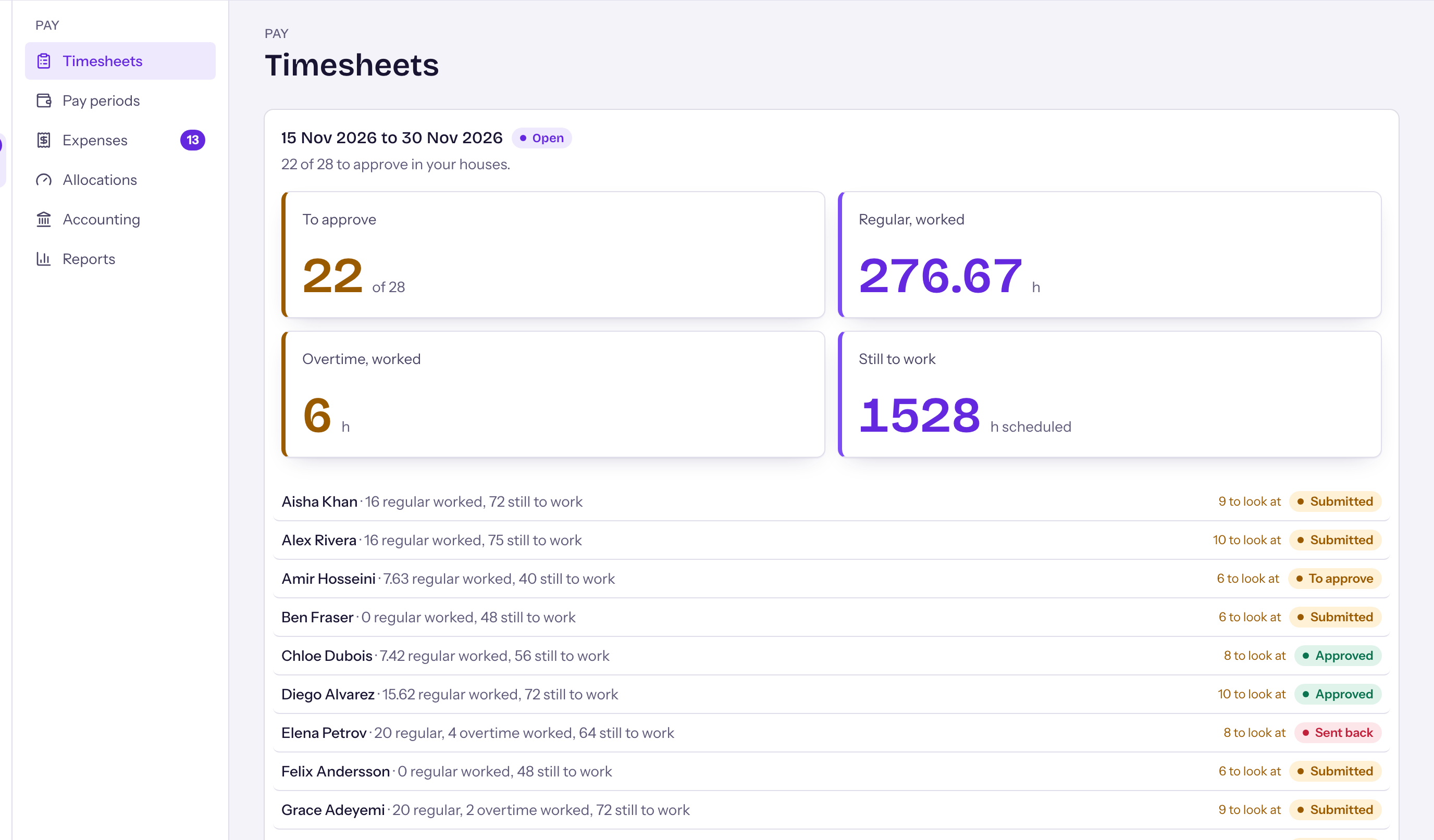
The timesheet review screen, with one row for each person and the approve and send back actions.
  • One timesheet per person for each pay period, built from verified clock-ins.
  • The office adjusts, approves or sends a timesheet back, then locks the period.
  • Pay rates carry dates, so history is never rewritten when a rate changes.
  • Approved hours export as spreadsheets for your payroll team.
  • Each worker sees their own hours.
  • Expense claims and mileage from the phone, with one decision for each claim.
  • Contractor invoices built from approved timesheets and claims, in the contractor’s own layout, with print, void and export.
  • Pay rules are set up for your organization.
04

Staff records and certificates

Every certificate each role needs, with proof, and a warning before anything runs out.

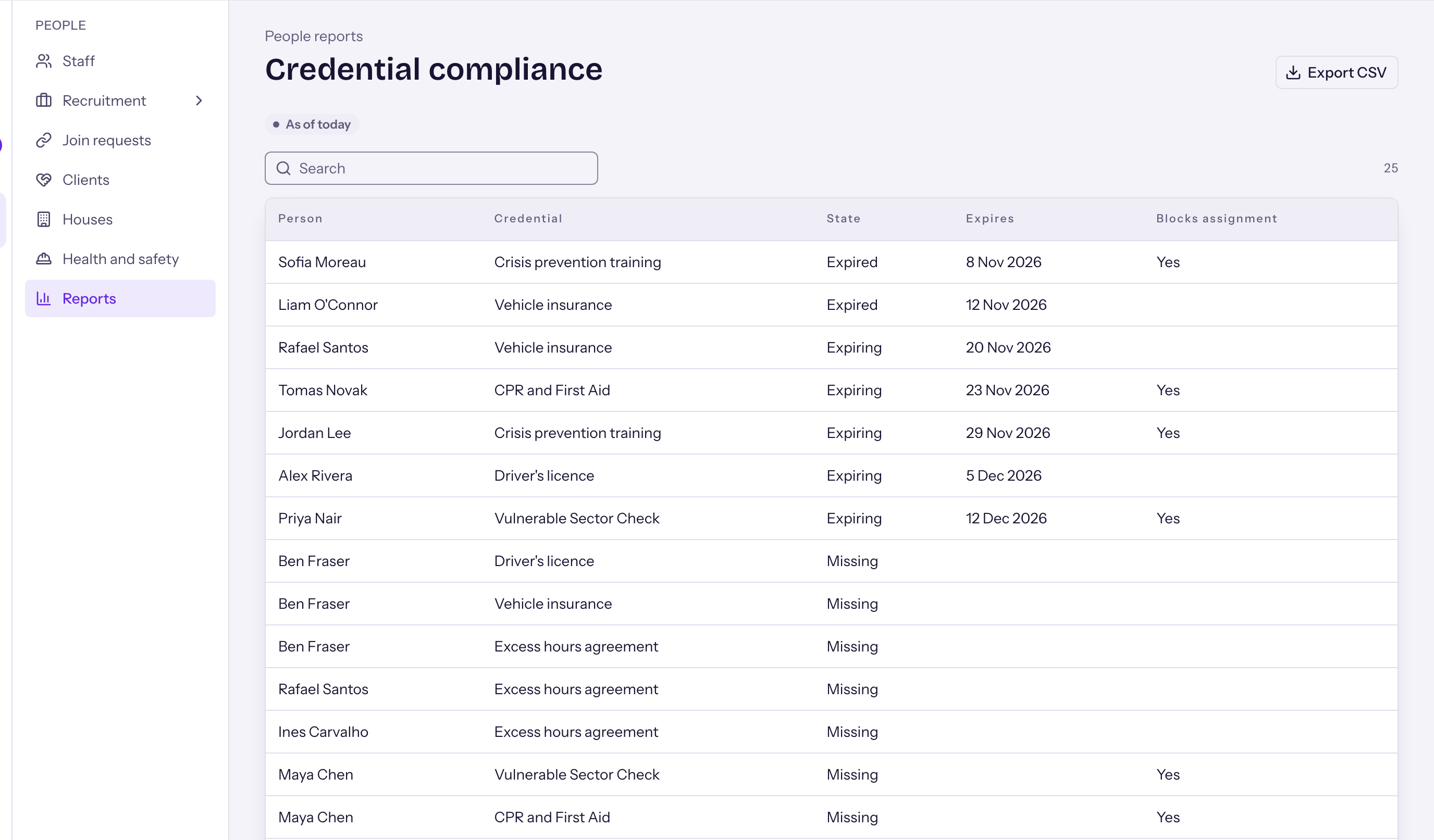
The certificate matrix, with staff down the side, certificates across the top and expiry warnings marked.
  • A certificate matrix for each role, with the evidence kept on file.
  • Staff photograph their own renewals from the phone.
  • A warning comes before a certificate expires. The system will not schedule someone whose certificate has lapsed.
  • Add a person in four steps. Sign-in is by invitation only.
  • Several roles with dates, employment types and hour caps for each person.
  • Onboarding checklists and training sign-off. Offboarding keeps the history.
  • A staff photo and a printed ID card in your organization’s colours and logo.
  • An employee file with shelves, access for each shelf, versions and signatures.
  • Probation and yearly reviews that schedule themselves.
  • Leave balances, absence history and employment history in one place.
  • Bring in your current roster and certificates from spreadsheets.
05

Hiring

From the vacancy to the first shift, in the same system that will schedule and pay the person.

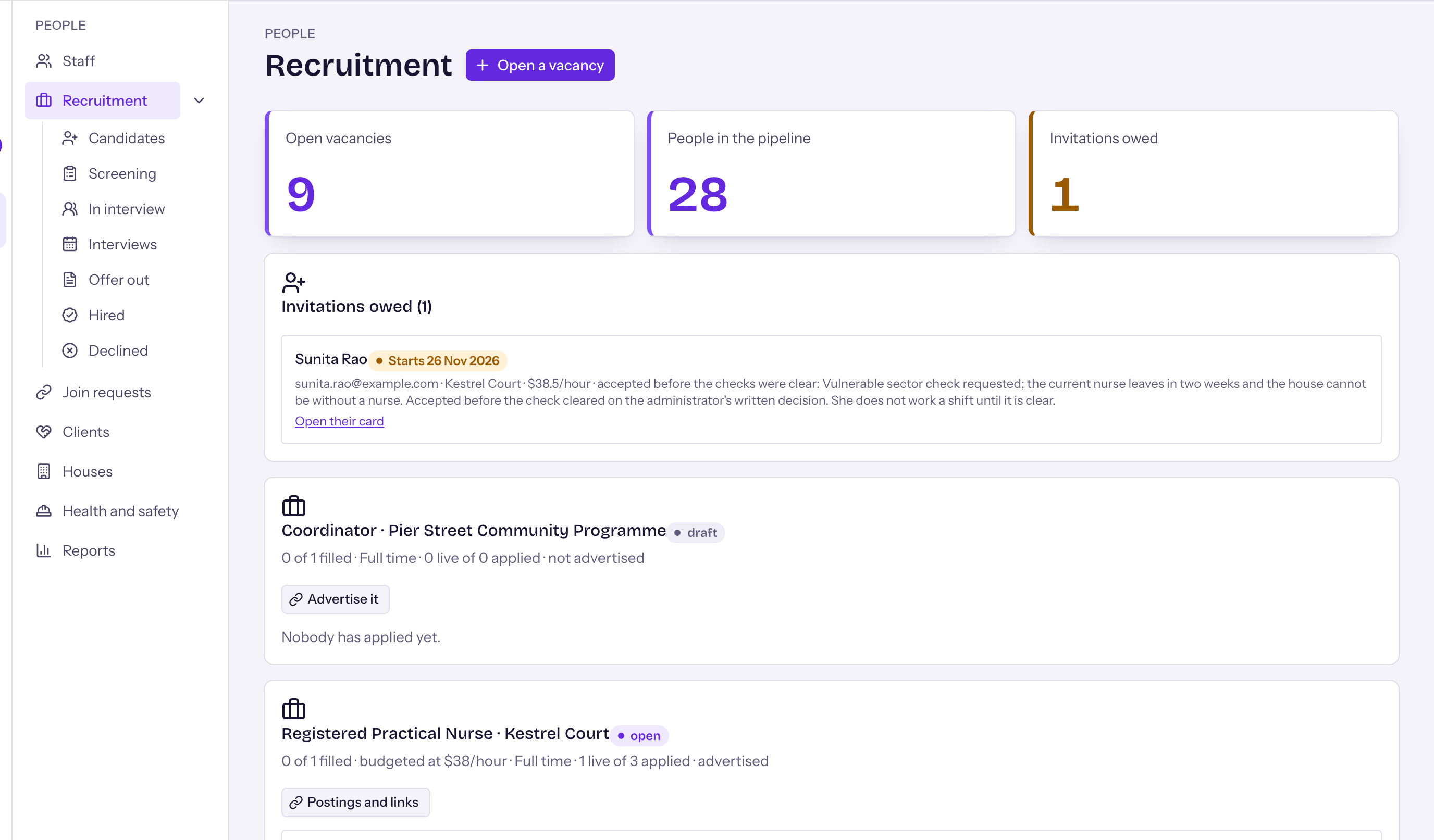
The hiring pipeline, with candidates in columns from applied through interview to hired.
  • Post a vacancy with a budgeted rate and take applications through a public form.
  • Move each candidate along a pipeline from applied to hired.
  • Score interviews against the same questions for every candidate.
  • Track the checks that must be done before a start date.
  • An accepted offer carries its terms across into the new staff record.
  • Optional join links for new people. They are off by default.
06

Clients, houses and funding

Each house, client, funder and operator in one place, with funded hours set against what is scheduled.

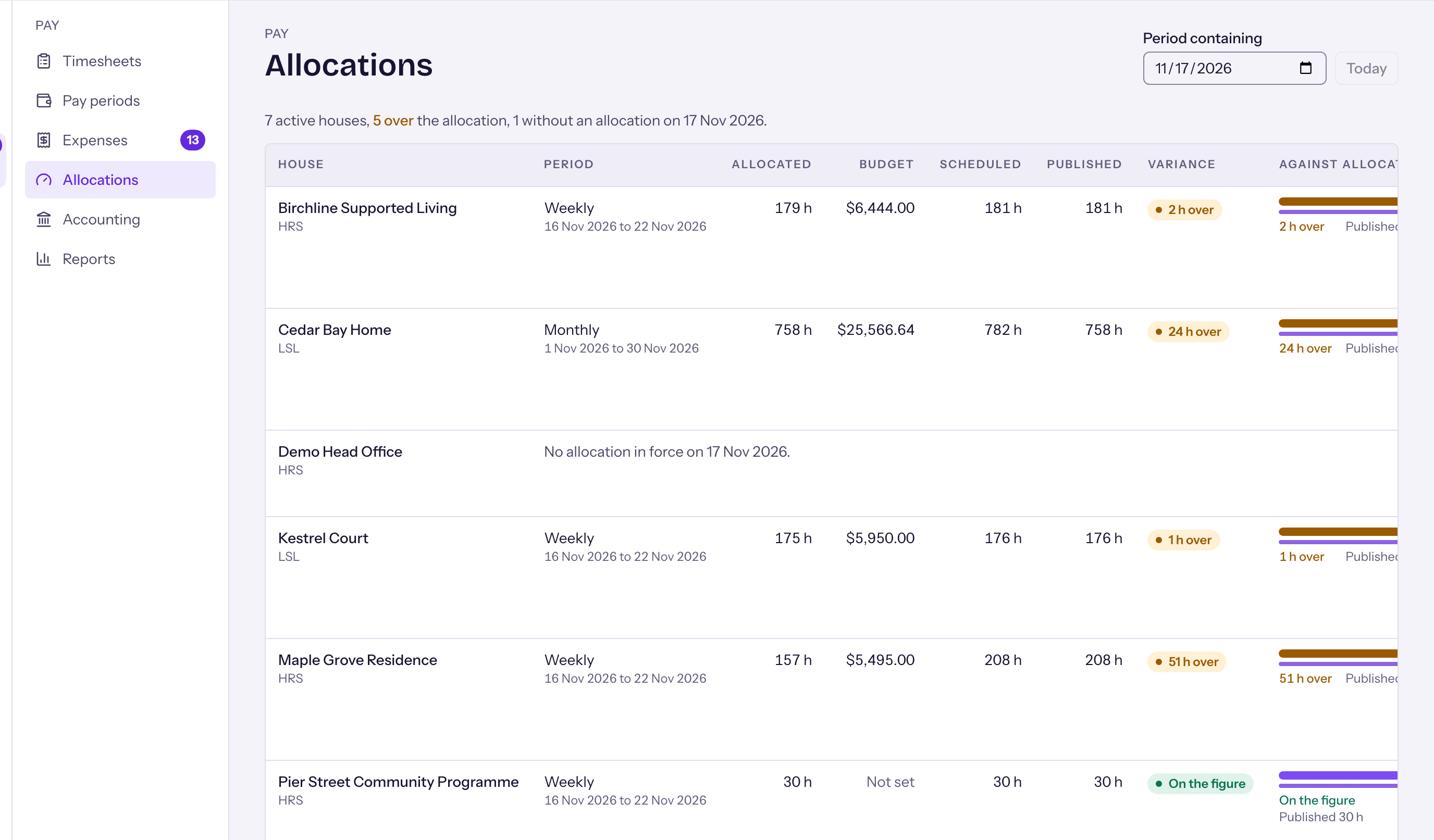
The funding screen, with funded hours set against scheduled hours for each client.
  • Keep houses, clients, funders and operators together.
  • Decide which workers may, and may never, support a particular client.
  • See funded hours against scheduled hours for each house.
  • Funder reports.
  • Client details are shown to a worker only when needed, and every view is recorded.
07

Incidents, safety and handover

Report it where it happens. The right people hear straight away and a supervisor sees it through to closure.

  • Report an incident from the phone, on the shift. The right people are told straight away.
  • A review and closure queue takes each incident to a finish.
  • Track hazards and safety inspections.
  • Write the shift handover in the app instead of on paper.
  • A register of vehicles, keys and equipment shows who holds each one, with issue and return and renewal dates.
08

Messages and notices

The right people hear about it, without a group text.

  • An inbox, email and phone alerts.
  • Notices and announcements, with delivery tracking.
  • Quiet hours are respected.
  • Every type of message can be previewed and switched off.
09

Roles, access and the record

Only the right people see it, and every change leaves a trail.

  • Five roles: Staff, Supervisor, Admin, IT and Org Owner.
  • The office can switch access on or off for one person. Supervisors can be limited to certain houses.
  • Rules stop anyone approving their own work.
  • Support staff can view the app as a user sees it, to help.
  • Every account needs a password and a code. Nobody can create their own account.
  • Sessions end on their own, and a locked-out person has a recovery path.
  • The audit log records who changed what, and when, with the values before and after. Reads of client records are logged too.
10

Set up the way you work

Your organization decides what is on.

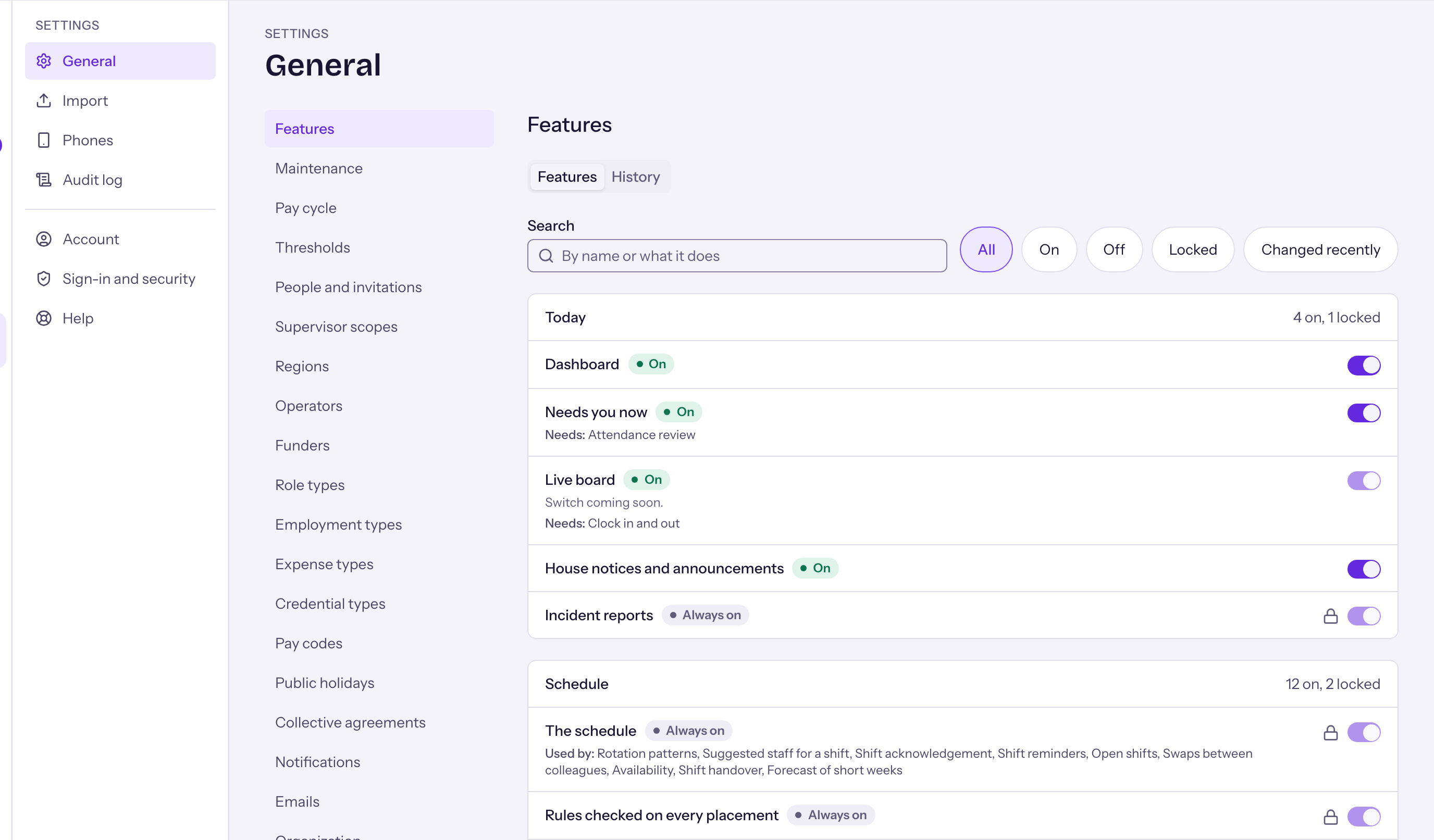
The Settings, Features screen, with a switch beside each feature that turns it on or off.
  • Every feature can be switched on or off for your organization.
  • The office changes the settings behind them, such as rest limits and thresholds.
  • Accounts can be tailored to your organization.
11

On the phone

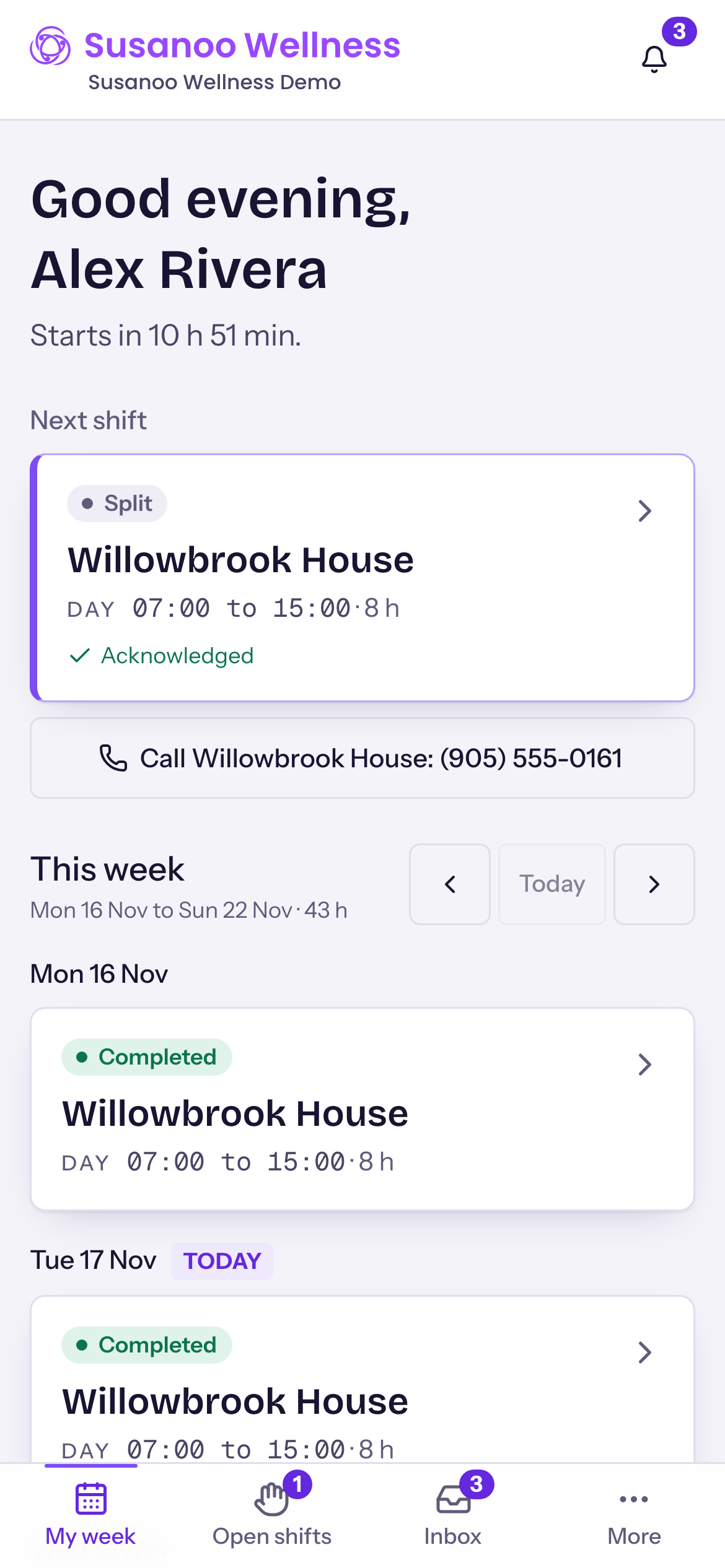
Staff open it in their phone’s browser. Nothing to install.

The staff phone view, showing today's shifts with the next shift first.
  • Works on iPhone, Android and a computer.
  • Large text and one clear action at a time.
  • A dark mode for night shifts.
  • Help from inside the app.
  • A Susanoo Wellness staff app is coming very soon.